
This guide covers Apple Watch and Bluetooth heart-rate setup, driver profiles, CAN configuration, automation and troubleshooting. CANPulse is motorsport engineering equipment, not a medical device.
CANPulse overview Download the CANPulse DBC
How CANPulse works
A supported sensor sends live heart-rate data locally over Bluetooth Low Energy. CANPulse validates and normalises that information, then transmits one source-independent CAN frame. The dashboard or logger sees the same identifier, scaling and status fields when the driver changes or when the source changes between the Apple Watch app and a compatible standard BLE sensor.
Before installation
- Back up the ECU, dashboard and logger configurations.
- Confirm the vehicle bus voltage levels, bitrate, termination and available identifiers.
- Check the CANPulse identifier against every ECU, PDM, dash, logger, keypad and expansion module.
- Use the supplied production loom and published power rating when the commercial hardware is released. Prototype boards require separate engineering validation.
- Mount the unit securely, away from excessive heat, water, fuel and moving parts.
Open configuration mode
- CANPulse opens a short configuration window after power-up.
- For the extended window, hold the physical configuration input while powering the unit.
- Connect with the iPhone app over Bluetooth, or join the temporary CANPulse-XXXX Wi-Fi network and browse to http://192.168.4.1/ if the captive page does not open.
- Change the factory Wi-Fi password before normal use. Wireless name and password changes take effect after reboot.
Set up a standard Bluetooth heart-rate sensor
- Fit and wake the sensor following its manufacturer’s instructions.
- Open configuration mode and scan for nearby heart-rate devices.
- Create or select the driver profile.
- Add the correct device to that driver and place it in the desired priority order.
- Select Standard BLE HR or Auto as the source mode.
- Save, reboot if requested, and verify connected, valid BPM, signal strength and optional battery state.
Set up Apple Watch
- Install the CANPulse iPhone and Apple Watch apps.
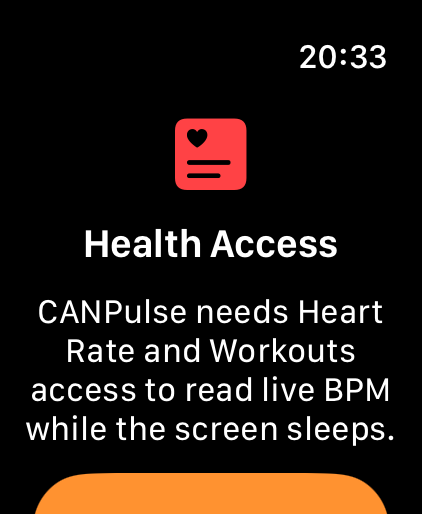
- On the Watch, complete the privacy wizard and allow Bluetooth, live heart-rate read access and the workout session required for continuous delivery.
- Open configuration mode on the in-car CANPulse unit.
- Open CANPulse on the Watch, choose the nearby unit and tap Start Session.
- In the iPhone or local web configurator, assign the newly seen Watch installation to the correct driver and save.
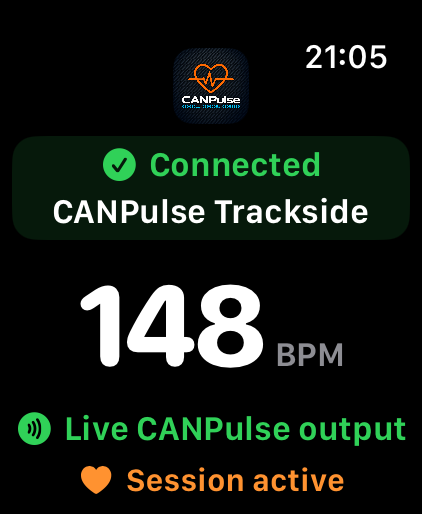
- Confirm that the Watch shows connected, live CANPulse output and a changing BPM before testing the vehicle logger.
The Watch connects directly to CANPulse during a session. The workout is discarded when it ends and CANPulse does not store HealthKit samples.
Driver profiles and device selection
- Explicit driver: only that driver’s saved devices are considered.
- Priority: the last-used device is tried first when still saved, followed by the configured order.
- Session lock: once fresh heart rate is flowing, signal-strength changes do not switch source.
- Auto Driver: exactly one detected known driver may be selected automatically. Ambiguous nearby drivers require a deliberate choice.
- Deleting the active driver or device clears the selection and allows the stale timeout to invalidate the output.
Configure the CAN output
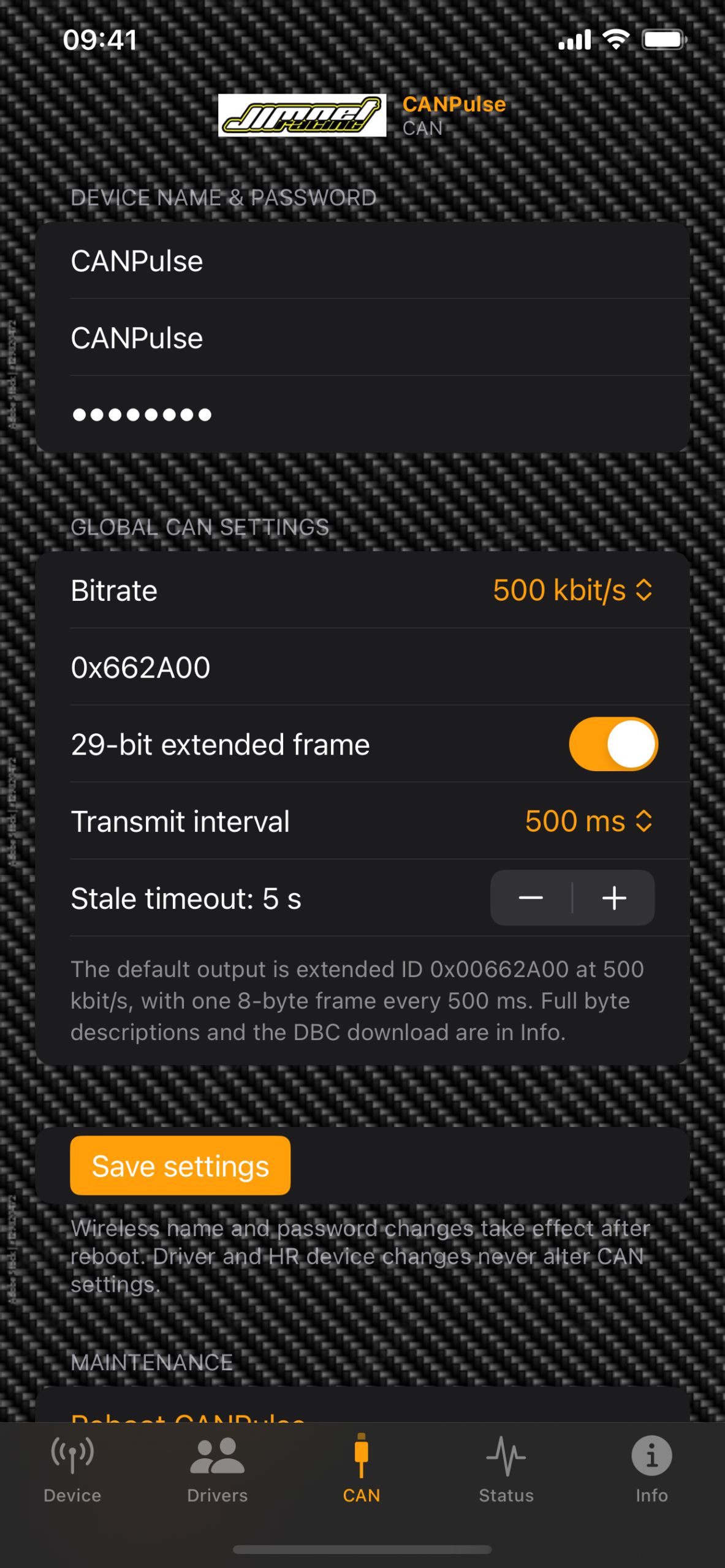
- Select the bitrate used by the target vehicle bus: 125, 250, 500 or 1000 kbit/s.
- Choose standard 11-bit or extended 29-bit format.
- Enter an unused identifier. The default is extended 0x00662A00.
- Select a transmit interval of 100, 250, 500 or 1000 ms. The default is 500 ms.
- Set the stale timeout. The default is 5 seconds.
- Save, reboot if requested, then verify with a CAN analyser before connecting all vehicle modules.
CAN frame version 1
| Byte | Field | Encoding |
|---|---|---|
| 0–1 | Heart rate | Unsigned 16-bit little-endian BPM; zero when invalid. |
| 2 | Status | Bit 0 valid, bit 1 connected, bit 2 contact known/valid, bit 3 stale. |
| 3 | Battery | 0–100%; 0xFF when unavailable. |
| 4 | BLE RSSI | Signed int8 dBm; 0x7F when unavailable. |
| 5 | Sequence | Wrapping counter incremented for each transmitted frame. |
| 6 | Version | 0x01. |
| 7 | Reserved | 0x00 in version 1; receivers must ignore it. |
When data becomes stale, valid clears, stale sets and BPM becomes zero. A connected sensor can therefore be connected but not currently valid.
CAN-controlled Watch start and stop
- In the iPhone app open CAN → CAN start and stop rules, or use the local configuration page.
- Create up to four start rules and four stop rules. Rules inside each group use OR logic.
- For each rule choose the incoming CAN identifier/frame type, start byte, 1/2/4-byte unsigned length, endianness, mask, factor, offset, comparison/threshold and optional hold time.
- On the Watch, connect to CANPulse and tap Arm CAN control before driving.
- Test start and stop conditions while stationary. The Watch vibrates and reports its actual state after a command.
A typical setup starts above a chosen engine speed and stops at zero RPM or from a masked steering-wheel button.
Logger and dashboard setup
- Import the CANPulse DBC where supported, or create the eight-byte channel manually.
- Match the identifier, standard/extended format and bitrate exactly.
- Log BPM together with the valid, connected and stale status bits. Do not treat a zero BPM as a valid measurement unless the valid bit is set.
- Optionally log sensor battery, RSSI, sequence and frame version for diagnostics.
- Bench-test sensor loss and reconnection to confirm the dashboard and logger handle stale data safely.
Third-party system notes
- AEM CD-series: DashDesign supports DBC imports for configurable CAN receive channels.
- Race Technology: compatible CAN configurations can import signals from a DBC file.
- Stack: selected logging systems support Vector DBC import through an enabled software option.
- Cosworth: Toolset-based loggers and controllers provide configurable CAN decoding; enter the CANPulse definition manually when direct DBC import is not available for the selected model.
- Other systems: MoTeC, AiM, ECUMaster, RaceCapture and other user-configurable CAN 2.0 receivers can use the published frame where their model and software allow custom CAN channels.
These are integration examples, not claims that every model is plug-and-play. Check the exact hardware, firmware, licences and software options before installation.
Using heart rate in data analysis
Add the CANPulse BPM and status channels to the same logging group as speed, RPM, throttle position, brake pressure, steering angle, lateral/longitudinal acceleration, lap distance and lap/sector time. This creates one time-aligned file for driver coaching and performance review.
- Overlay BPM with speed and control inputs to locate workload peaks.
- Compare repeated laps to see whether physiological effort changes while lap time or consistency improves.
- Review different drivers using the same stable CAN channel in multi-driver cars.
- Compare qualifying, race, wet, night and traffic conditions.
- Inspect recovery on straights, cool-down laps and lower-intensity periods.
- Use valid/connected/stale channels to exclude missing or stale readings from analysis.
Do not use CANPulse heart rate as a medical diagnosis, a sole fitness decision or a safety-critical vehicle control.
Troubleshooting
- No CAN frames: check power, common ground, CAN High/Low polarity, bitrate, frame type, identifier, termination and wiring continuity.
- Connected but zero BPM: inspect the valid and stale bits; refit/wake the sensor and confirm that fresh measurements are reaching CANPulse.
- Wrong driver selected: disable Auto Driver temporarily, select the driver explicitly and review the saved-device priority list.
- Watch collects but does not transmit: verify the green live-output status, nearby CANPulse selection and Bluetooth permission.
- Watch session stops in the background: confirm Health permissions and that the CANPulse workout session is active.
- Configuration unavailable: reboot for the short window or use the physical input for the extended window.
- CAN automation does not start: arm CAN control on the Watch, then verify identifier, byte position, endianness, mask, scaling, threshold and hold time with recorded CAN data.
- Bus errors after connection: disconnect CANPulse and recheck bitrate, termination, wiring and identifier conflicts before reconnecting.
Privacy and security
- No account, cloud service or internet connection is required.
- Driver names and saved device identities remain in CANPulse until removed or factory reset.
- Anyone with access to the vehicle CAN bus can observe the BPM frame; control access to wiring, loggers and exported data.
- Persistent configuration writes are accepted only during the physical/startup configuration window.
- Change the factory configuration Wi-Fi password before normal use.
Support information to provide
Include firmware and app versions, hardware revision, selected driver/source mode, sensor model, CAN identifier/frame type/bitrate/interval, stale timeout, logger or dash model, and the exact connected/valid/stale state shown when the issue occurred. Do not send Health data, passwords or unrelated vehicle logs unless specifically required.
A new CANPulse Android companion app is coming shortly.