
This guide covers initial setup, permitted event use, team access, the in-car hardware and ECUMaster ADU integration. The driver display presents conventional pitboard information without driver-operated messaging or interaction. Keep official flags, light panels and race-control instructions as the primary source of safety information.
Open the Pitboard web app iPhone & iPad app Pitboard product page
Competition Use
Motorsport UK regulations place restrictions on electronic communication between competing vehicles and teams. Jimnet Pitboard has not yet received confirmation of eligibility for Motorsport UK competition use. Competitors should verify the applicable regulations and obtain any necessary authorisation before using wireless messaging during an event.
Jimnet Pitboard is designed to provide the types of information traditionally communicated using a physical pitboard. Eligibility for use in competition depends on the applicable Motorsport UK National Competition Rules, championship regulations and any relevant approvals.
Jimnet has requested formal clarification from Motorsport UK concerning Chapter 12, Appendix 4, Article 4.13 of the 2026 National Competition Rules. That clarification is pending; Jimnet Pitboard is not presented as Motorsport UK approved, certified or confirmed compliant.
Non-interactive driver information
Jimnet Pitboard is designed as a driver information display, not a two-way driver messaging system. The driver cannot compose messages or respond to the pit crew using the display, and no interaction is required while driving. The display does not provide remote control of the vehicle, engine management or vehicle functions.
The pit crew uses the app or web Pit wall to prepare and send information. Display settings are configured before driving. The non-interactive driver interface does not mean that the underlying mobile or MQTT network connection is technically one-way.
Supplementary race flag indications
The system can also provide supplementary race flag indications, including red flag and safety car status, where permitted by the applicable event regulations. These indications are supplementary only and do not replace official circuit flags, lights or race-control instructions.
Flag states are configured through the Pit wall; they must not be treated as verified official race-control signals. Supported states include green, yellow, red, safety car, full-course yellow and chequered. Configured alerts can flash on the display or drive compatible dash alerts.
Before the first event
- Verify the applicable rules and obtain any necessary authorisation for wireless messaging, CAN integration and supplementary flag indications before event use.
- Mount the Pitboard Link securely, away from excessive heat, water and moving parts.
- Connect the supplied loom to a protected 6–30 V supply and the selected vehicle CAN bus. Confirm polarity and CAN High/CAN Low before applying power.
- If you have the optional 4.3-inch display, mount it within the driver’s normal glance area without obstructing the track view or vehicle controls.
- Sign in to the Jimnet Pitboard app or web app and confirm the correct racer and Pitboard are selected.
- Open the hardware/device screen and check that the unit reports online, with a recent connection time and usable mobile signal.
- Configure the position mode, four data lines, labels, message, remaining time, colours, orientation and CAN settings.
- Send a harmless test message while the car is stationary and verify it on the physical display or connected dash.
Using the Pit wall — pit crew
The following controls are for the pit crew. Configure the in-car display before driving; no driver input is required. Use messaging and supplementary flags only where permitted by the applicable regulations.
- Select the racer or car before changing any value.
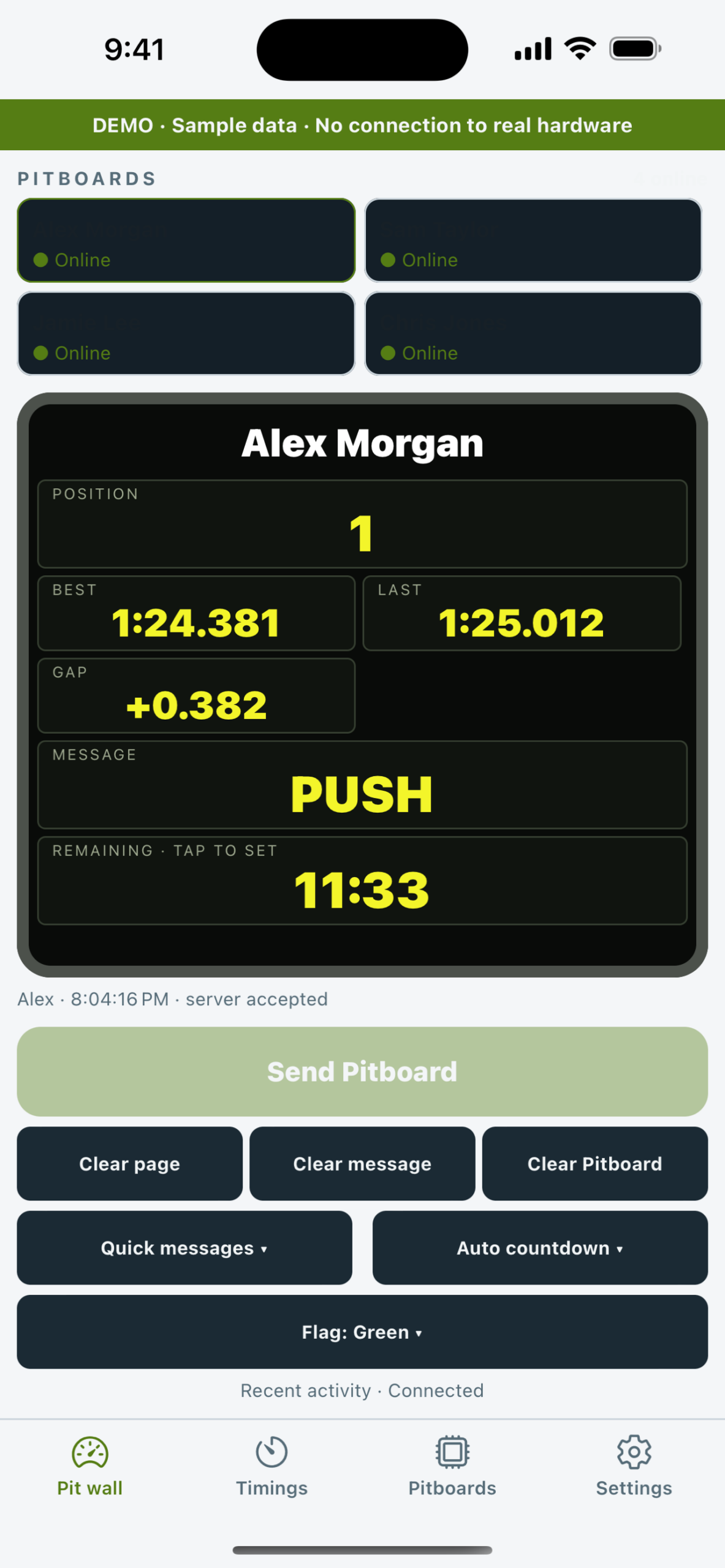
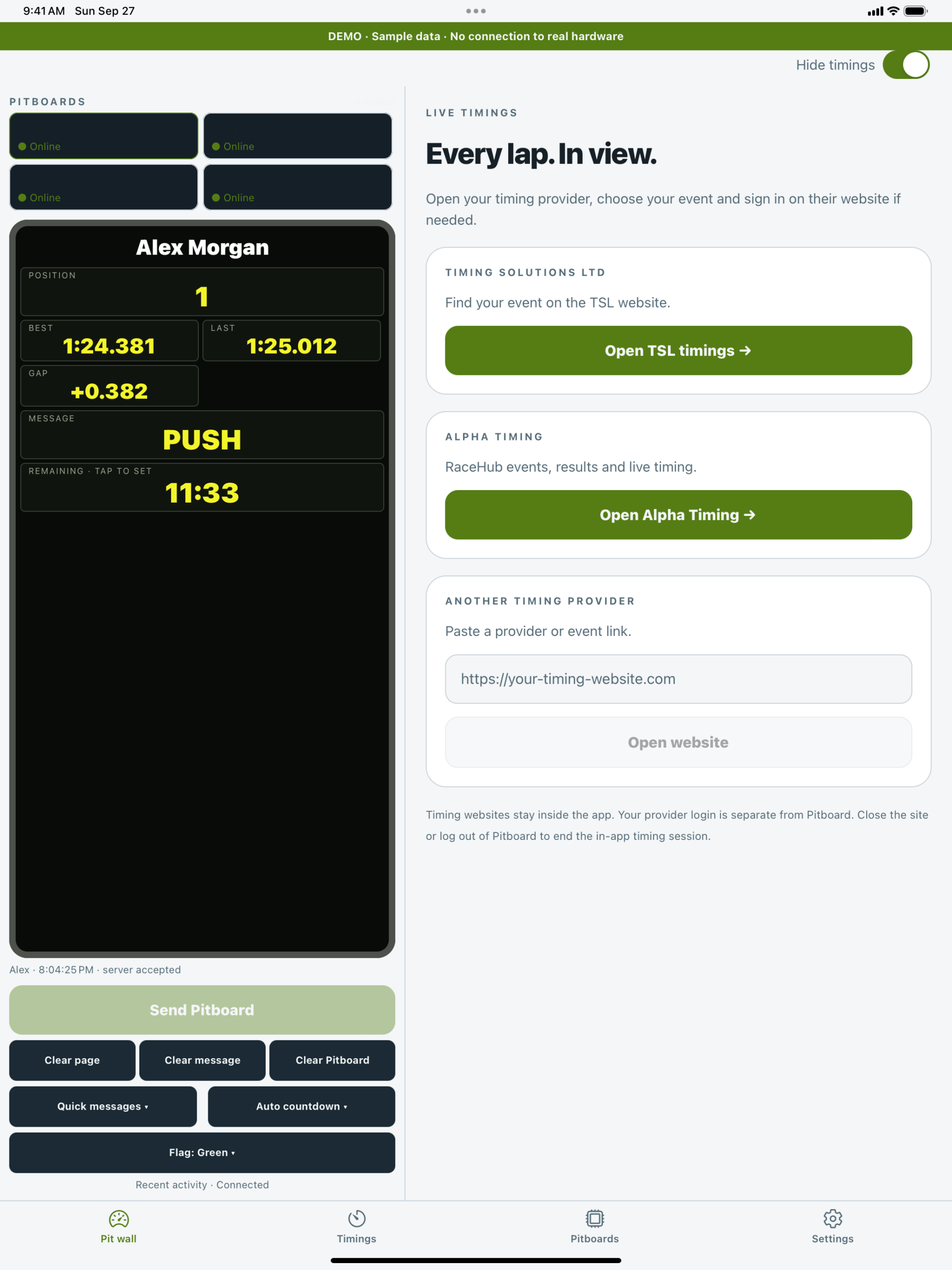
- Review the currently displayed position, four timing/value lines, message, countdown and flag state.
- Enter only the changes needed for the next update. Messages are limited to eight clear characters; examples include BOX NOW, PUSH and RAIN.
- Use a saved quick message for common instructions, or choose the appropriate green, yellow, red, safety-car, full-course-yellow or chequered state.
- Check the recipient confirmation carefully, then send.
- Confirm that recent activity shows the update was accepted by the service. “Server accepted” does not prove that an offline car displayed it, so also watch device connectivity.
Countdown and timing values
- Lap times use MM:SS.mmm.
- Gaps use SS.mmm and may be positive or negative.
- Remaining time uses MM:SS.
- Automatic countdown reduces the displayed remaining time after it is started. Check it against the official event clock.
Teams and permissions
- Owners can invite team members or approve access requests.
- Give message permission only to crew who should be able to update the car.
- View-only access is useful for engineers or guests who need status without send controls.
- Always confirm the selected racer when a team manages multiple cars.
iPhone and iPad app
The native app combines the Pit wall, messages, timing links, teams, events and hardware settings. The crew-app Race mode keeps the screen awake; it is separate from the proposed Competition Mode and does not restrict competition features. portrait and landscape layouts and system/light/dark themes are available. Supported devices can protect saved sign-in with Face ID, Touch ID or the device passcode.
Demo mode uses sample racers and simulated sends. Use it for familiarisation without changing live hardware.
ECUMaster ADU setup
Use one of the Jimnet starter projects when beginning a new configuration, or copy the required CAN channels, calculations and display elements into a backed-up copy of an existing project.
Choose the correct download
- CAN1 at 1 Mbit/s — Pitboard frames assigned to ECUMaster ADU CAN1.
- CAN2 at 500 kbit/s — Pitboard frames assigned to ECUMaster ADU CAN2.
- Pitboard DBC — for custom CAN integrations.
Installation steps
- Save a separate backup of the car’s current ADU project.
- Download and unzip the correct starter project. Open it in a compatible ECUMaster ADU Client version.
- For an existing car project, copy or recreate the Pitboard CAN inputs, calculated channels, text/flag logic and required display items instead of overwriting the whole project.
- Set the selected ADU CAN interface to the matching bitrate: CAN1 template at 1 Mbit/s or CAN2 template at 500 kbit/s.
- Confirm that the Pitboard Link uses the same bus and bitrate.
- Check every extended CAN identifier against the ECU, PDM, logger, keypad and other devices already on the bus.
- With the car stationary, power the system and verify connection state and signal strength first.
- Send a position, each timing/value line, a positive and negative gap, remaining time, an eight-character message and each required flag state.
- Confirm that unavailable values do not appear as valid zeroes and that negative gaps show the correct sign.
- Only after bench testing should the project be loaded for a track test.
What the templates decode
- Overall/class position, including decimal indication where supplied.
- Four timing/value channels with custom labels, minutes, seconds/milliseconds and validity/sign state.
- Remaining time.
- Eight-character ASCII message.
- Mobile signal strength and service connection state.
- Green, yellow, red, safety car, chequered and full-course-yellow flags.
- Supporting calculations for formatted times, signed gaps and display/shift-light alerts.
CAN troubleshooting
- No channels update: check power, common ground, CAN High/Low polarity, bus selection, matching bitrate and termination.
- Some values update incorrectly: confirm that the current value/state frames and 29-bit extended identifiers are being used.
- Bus errors: disconnect the new device, check resistance/termination and inspect for identifier or bitrate conflicts.
- Message text is incomplete: the message is eight ASCII characters; clear unused characters in the display logic.
- Negative gaps appear positive: use the supplied value-state calculation; state 2 negates the complete duration.
Other compatible CAN systems
The Pitboard DBC is supplied in the widely adopted Vector CAN database format. Compatible AEM CD-series and Race Technology software can import DBC signals, selected Stack logging systems support a Vector DBC import option, and configurable Cosworth Toolset systems can use the published frame definitions. Other programmable CAN 2.0 dashboards and loggers can be configured from the same information. Always check the exact model, firmware and software licence, then bench-test before use.
Competition Mode — Planned / Under Development
Competition Mode is a proposed restricted operating profile. It has not yet been implemented and tested and must not be relied on as an available feature. Proposed features are:
- Configurable limits on message update frequency.
- An option for once-per-lap updates.
- Restriction to conventional pitboard-style information.
- Disablement of vehicle telemetry uplinks.
- Independently configurable supplementary flag indications.
- No driver-operated messaging interface.
- No remote vehicle control.
This is not an approved compliance mode. Once-per-lap updates do not establish eligibility under Motorsport UK rules. The existing crew-app Race mode keeps the app screen awake; it does not apply the proposed Competition Mode restrictions.
Advanced features and permitted use
CAN integration, vehicle telemetry, team management and cloud services are separate from conventional pitboard information. The CAN output described here makes received Pitboard information available to compatible dashboards or loggers; it should not be confused with an unrestricted vehicle telemetry uplink. Ask Jimnet to confirm the availability of vehicle telemetry uplinks and any planned extensions for the selected hardware, firmware and service. Certain advanced features may only be suitable for testing, non-competition use or events where expressly permitted.
Race-day checklist
- Applicable regulations checked and any necessary authorisation obtained for the features in use.
- Correct racer and car selected.
- Pitboard Link online with a recent connection time.
- Physical display or dash tested before leaving the paddock.
- Countdown matched to the official clock.
- Quick messages agreed with the driver.
- Crew permissions checked.
- Official flags, lights and race control remain authoritative.
Common questions
Is Jimnet Pitboard approved for Motorsport UK competition?
No confirmation of eligibility has yet been received. Check the current National Competition Rules, championship and event regulations, and obtain any necessary authorisation before using wireless messaging.
Does the driver use the touchscreen or send replies?
No. The display requires no driver interaction while driving and offers no driver-operated messaging interface. The pit crew prepares information in the app or web Pit wall; configure display settings before driving.
Are flag indications official race-control messages?
They are supplementary Pit wall indications and must not be treated as verified official race-control signals. Official circuit flags, lights and race-control instructions remain authoritative.
Does once-per-lap updating make it eligible?
No. Once-per-lap updating is proposed for Competition Mode, which is Planned / Under Development. Neither that proposal nor a restricted update rate establishes competition eligibility.
Support information to provide
When asking for help, include the Pitboard serial/name, hardware and firmware versions, selected CAN bus and bitrate, ADU model/client version, the time of the problem and a clear description of what the app, device and dash each showed. Do not send account passwords.
A new native Jimnet Pitboard app for Android is coming shortly. Android users can continue to use the full browser-based Pit wall in the meantime.